



Sponsored content
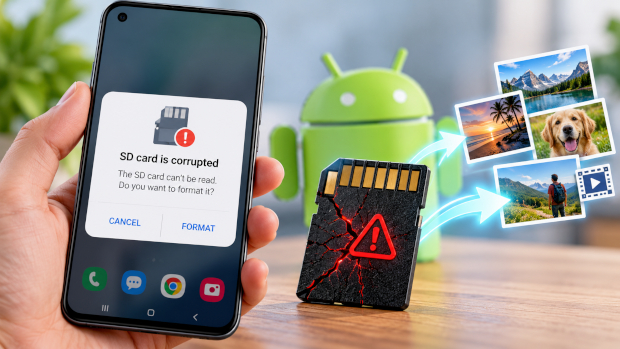
You slide the microSD card back into your phone and get a message: “SD card is damaged”. Or maybe Android asks if you’d like to format it. Or the gallery shows gray thumbnails that won’t open, and the card has vanished from Settings entirely.
It feels like your photos are gone, but that’s often not true. In many cases the card’s file system, the index that tells Android where every file sits, is what broke. The files themselves may still be there. What you do in the next few minutes matters more than almost anything else, and the most common mistake is tapping Format out of panic.

This guide walks through diagnosing the problem, protecting your files, and trying fixes from safest to riskiest. One caveat up front: whether you get files back depends on what kind of corruption you have and how bad it is. Nobody can honestly promise a full recovery.
What causes SD card corruption?
A few causes are well understood. Others are plausible but hard to prove in any one case.
The big one is pulling the card out without ejecting it, or letting the phone die mid-write. Android is often still writing small updates to the file system, and cutting that off can leave the index half-finished. Interrupted transfers do the same thing: a cable yanked during a large copy, or a phone shutting down at 1% while you record video.
Cards also wear out. Flash memory survives a limited number of writes, and cheap or counterfeit cards tend to fail sooner. Moving one card between a phone, a camera, and a laptop adds more chances for something to go wrong. Malware and buggy apps can damage files too, though that’s rarer.
Then there’s physical damage: heat, moisture, bent contacts. No software fix helps there. You can’t always tell which cause you’re dealing with, which is why it pays to start with the gentlest steps.
Do this first
Stop using the card. Don’t take photos, don’t let apps save to it, and don’t install anything on it. Every new write can overwrite data you might still recover.
Don’t accept the format prompt. Tell Android no. And if you do recover files later, save them to your computer, never back onto the damaged card.
If the phone still sees the card, eject it from Settings before pulling it out. If it doesn’t, power the phone off first.
How to fix a corrupted SD card on Android
Go in this order. The steps get riskier as you go.
Restart and reseat the card
Unmount the card (usually Settings → Storage → SD card → Unmount, though the wording varies by brand), power off, and take it out. Look at the gold contacts. Dust or a smudge can cause read errors. Put it back and restart. It sounds too simple to work, but a poor connection can look exactly like corruption, and this costs you nothing.
See what Android actually reports
Open Settings → Storage (on Samsung phones, Device care → Storage) and note what you see.
If the card is listed but marked damaged or unsupported, the phone detects the hardware but can’t read the file system, and recovery is often possible. If the card shows a size but no files, the data may exist behind a broken index. If it isn’t listed at all, the phone isn’t communicating with it, and the card, the slot, or the contacts may be at fault. Try the card in another phone or a reader to find out which.
Try a card reader and a computer
Put the card in a microSD adapter or USB reader and plug it into a PC or Mac. Computers are often more forgiving than phones. Say your phone shows nothing but your laptop opens the card normally. In that case, copy everything off right away, before you try anything else.
If the computer asks you to format the drive, or shows it as “RAW” or 0 bytes, decline and go to the recovery section below. If the computer doesn’t see it either, try a different reader and port before giving up. Readers fail too.
Check for file-system errors, with caution
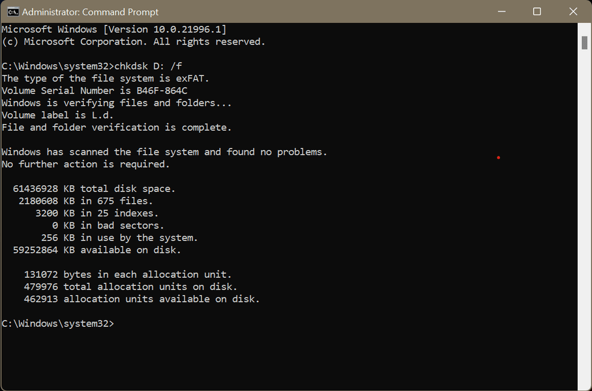
Windows and macOS include repair tools: the Check option under a drive’s Properties → Tools on Windows (or chkdsk from the command prompt), and First Aid in Disk Utility on a Mac. They’re useful, but they work by rewriting parts of the file system. On a lightly damaged card, that can fix things. On a badly damaged one, it can make later recovery harder.
If you use chkdsk, running it without the /f switch only reports problems. Adding /f tells it to make changes. My advice: if the files matter to you, copy or recover them first, and repair afterward. An error report tells you the file system is damaged, not whether your photos are still intact.
Format last, and only on purpose
Formatting builds a fresh, empty file system. A quick format usually leaves much of the old data physically in place, but you can’t count on that, and anything written afterward can overwrite it. A full format is worse for recovery.
So format only after you’ve saved what you need, or decided you can live without it. When you do, use the file system the card shipped with. Cards up to 32 GB (SDHC) normally use FAT32, and cards of 64 GB and above (SDXC) normally use exFAT, following SD Association conventions. If the card corrupts again soon after a clean format, stop trusting it and buy a new one.
Recovering photos and videos from the card
When the card won’t open normally, recovery software on a computer is the next move. These tools ignore the broken index and scan the raw data for recognisable file patterns, like the start of a JPEG or an MP4. That’s how they can find files the operating system can’t list.
Stellar Photo Recovery is one option. It’s a Windows and Mac program that Stellar says recovers photos, videos, and audio from SD cards, including damaged or inaccessible ones. It runs on a computer, so you take the card out of the phone, plug it into a reader, and scan from there. That’s different from Stellar Data Recovery for Android, which focuses on the phone’s internal storage and shouldn’t be expected to pull files from an external SD card.
In practice, it goes like this:
- Connect the card to your computer with a reader.
- Select the card in the software and start a scan. A quick scan is faster, and a deep scan takes much longer but reads the whole card.
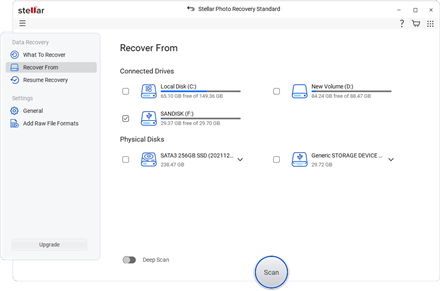
- Preview what it finds if the software allows it. A clean preview is encouraging, but a failed preview doesn’t prove the file is lost.
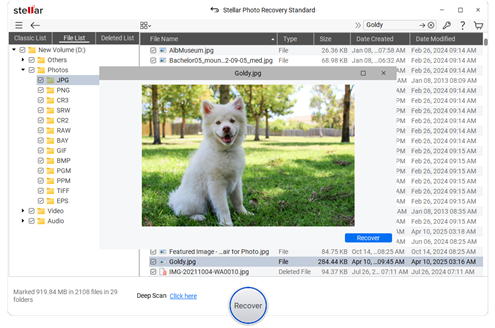
- Save recovered files to your computer’s drive or an external drive, not back to the card. Expect uneven results. Some files may come back whole, some partly damaged, and some without their original names or folders. Large videos are often harder to rebuild than photos, because they’re more likely to be stored in scattered pieces. Anything that’s been overwritten is gone for good. Many recovery programs let you scan and preview for free before you pay, which is a sensible way to see what’s findable.
When to stop and call a professional
There’s a point where more tinkering does more harm than good. Consider a professional recovery service if:
- No reader or computer detects the card at all,
- The card is cracked, bent, burnt, or was exposed to water,
- It keeps disconnecting, or gets hot or very slow during a scan, or
- The files can’t be replaced and software scans haven’t found them.
Failing hardware can get worse every time you power it up. Reputable labs generally assess the card before committing you to a price, and you should be wary of anyone who guarantees a result before looking at it.
Preventing it next time
Most of this is habit. Eject the card before removing it. Don’t start a big transfer or a long video on a nearly dead battery. Buy cards from reputable sellers, and retire any card that has thrown repeated errors.
The most important habit is backup. An SD card is storage, not a backup. If photos exist only on the card, they’re one bad moment from gone. Copy them to a computer or cloud service regularly. Also try to avoid passing one card around between many devices, and format it in the device that will use it.



 Ltd
Ltd